Genuine App Store app · Official manual
Shadowrocket Download
Shadowrocket official product pageDownload on the App StoreA paid app with a one-time purchase, available only on the App Store. Check the storefront and developer before buying. If you’ve purchased it before, check your Purchased list first.
- Developer: Shadow Launch Technology Limited
- App ID: 932747118
- US price: $2.99 · One-time purchase
- Universal for iPhone and iPad
Check the App Store listing for current pricing, system requirements, and universal purchase availability.
01 / APP STORE
Storefront region and purchasing account
Shadowrocket is available through the App Store. It isn’t available in the mainland China storefront, so if it doesn’t appear in search results, first check the storefront used by your purchasing account instead of trying different search terms. The country or region associated with your Apple ID determines which storefront you see; your device’s display language, physical location, and the storefront path in a web link do not change your account region. Opening the US product link does not switch your account to the US storefront.
First, check “Media & Purchases”
On your device, open Settings, tap your Apple ID at the top, select “Media & Purchases,” then “View Account” and check “Country/Region.” Menu paths can vary slightly by system version, so follow the labels shown on your device. Check the account used for App Store purchases, which may differ from the account used for other device services. Once you’ve confirmed the account, return to the App Store so you don’t mistake another account’s purchase history for the current one’s.
Before changing your region, review the requirements on your account page and check your account balance, active subscriptions, payment method, and Family Sharing settings. Whether you can change regions, what information you’ll need, and which purchases remain available afterward depend on your account status and storefront rules. This guide explains where to check; it does not guarantee that every account can change regions. Don’t change account details just because one search didn’t find the app.
Distinguish storefront availability from a failed purchase
If the page says the app isn’t available in your country or region, check storefront availability first. If the page shows a price but the purchase fails, review the payment message and order status. If you were charged but the download hasn’t started, check your purchase history and App Store download status. These are different stages and shouldn’t all be treated as app errors. If the page won’t load temporarily, check your network and whether the App Store can open other purchased items, then try the same product page again.
02 / VERIFY
Verify the app: icon, developer, and app ID
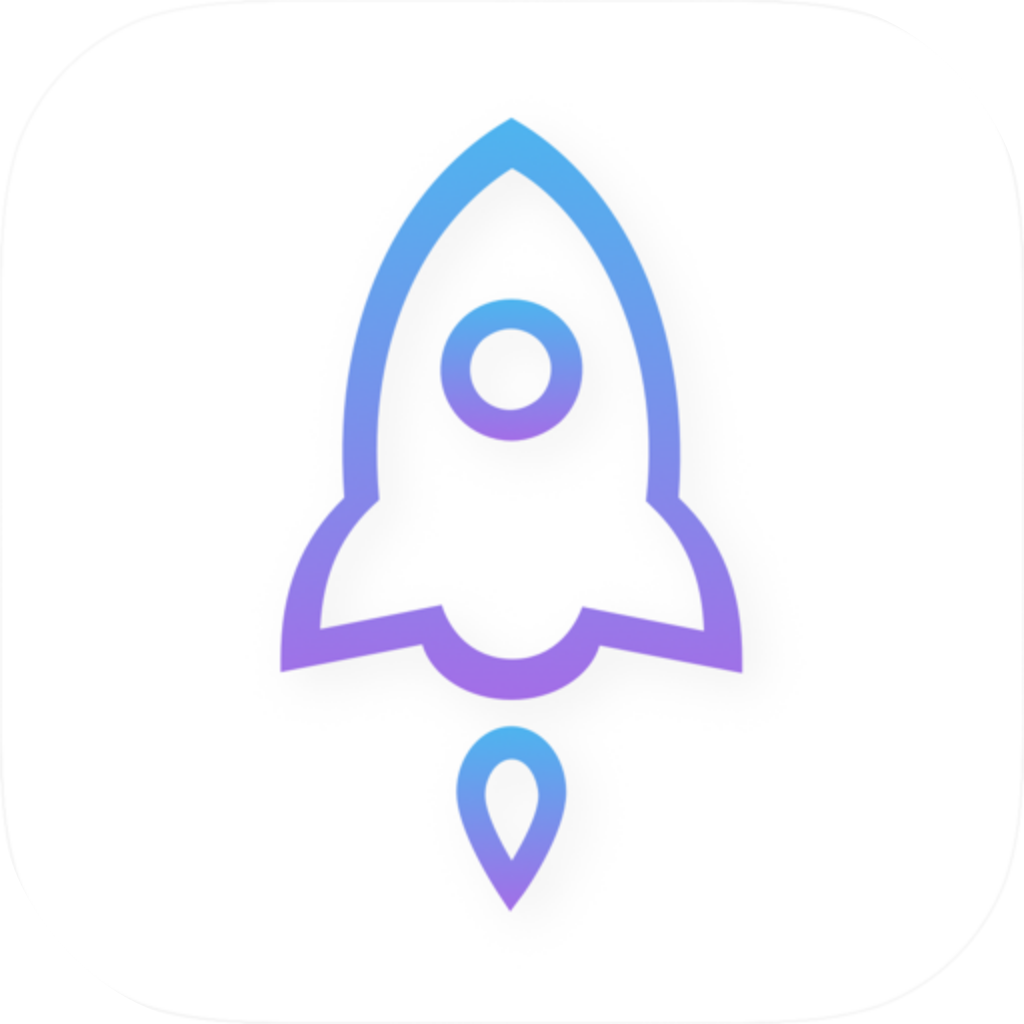
Similar names and icons in search results can be confusing. On the product page, check all three details below. Don’t decide what to buy based only on a nickname or search ranking. This is the Shadowrocket official website and manual. The icon shown here matches the official App Store icon, but always verify the product on the App Store page you’re about to open.
Shadow Launch Technology Limited
App ID: 932747118
- Check the official icon. It should show a blue-purple outlined rocket on a white background. The icon can help you identify the app, but it doesn’t replace checking the developer and product details.
- Check the developer. On the product page, look for the developer or seller and confirm the name is Shadow Launch Technology Limited. The full name may wrap onto multiple lines, so read all of it.
- Check the app ID. The product URL linked from this page ends in
id932747118. The app ID is a fixed product identifier. A similarly named listing with a different ID is not the Shadowrocket described here.
If any of the three details don’t match, stop and recheck the product page before buying. Screenshots, descriptions, and interface language can help identify an app’s purpose, but none proves the product’s identity on its own. After installation, open the app using the App Store listing’s “Open” button and use the official screenshots below to identify its main sections. Don’t rely on decorative elements or promotional copy.
Compare the official Home and Add Server screenshots
These English-interface screenshots were uploaded by the developer to the App Store. Home shows Not Connected, Global Routing, Connectivity Test, and the SERVER section. Add Server lists fields such as Type, Host, Port, Password, and Method. They illustrate the app’s layout; purchasing the app does not provide a working connection. The interface may change, so refer to the labels in your current version.
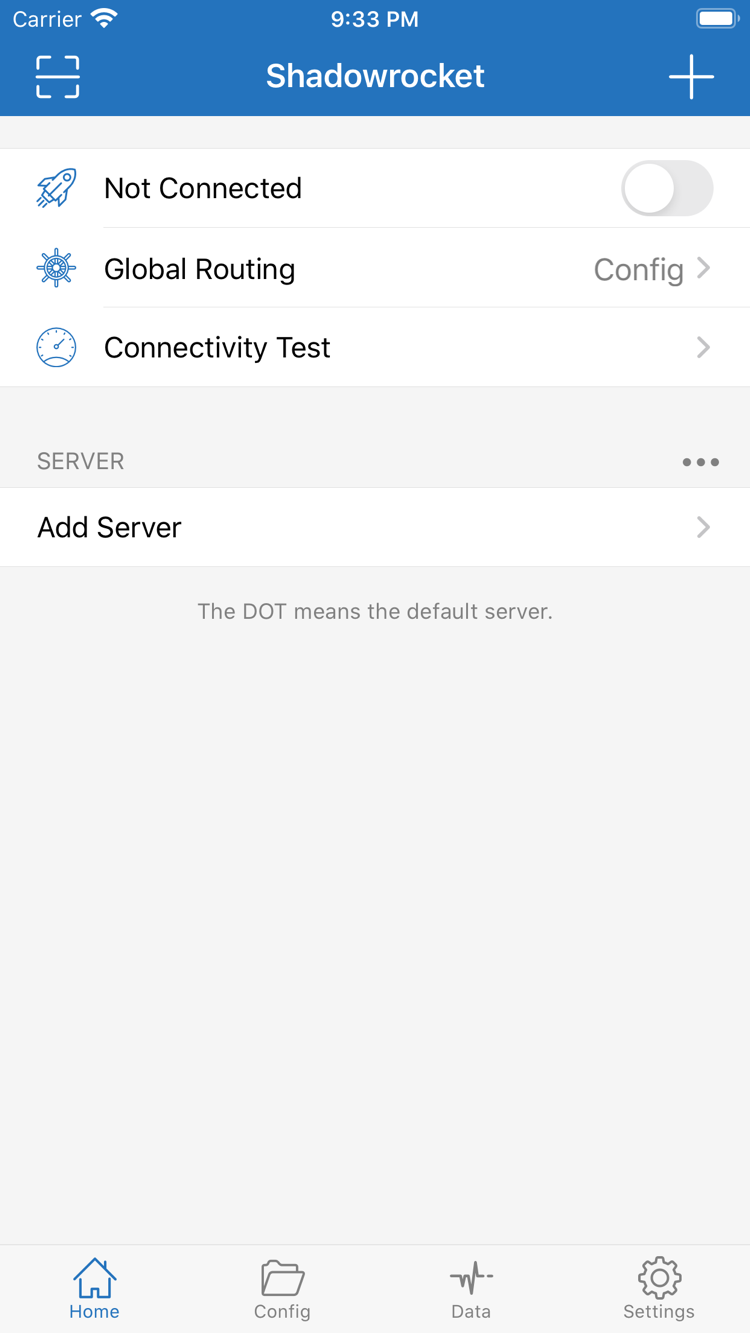
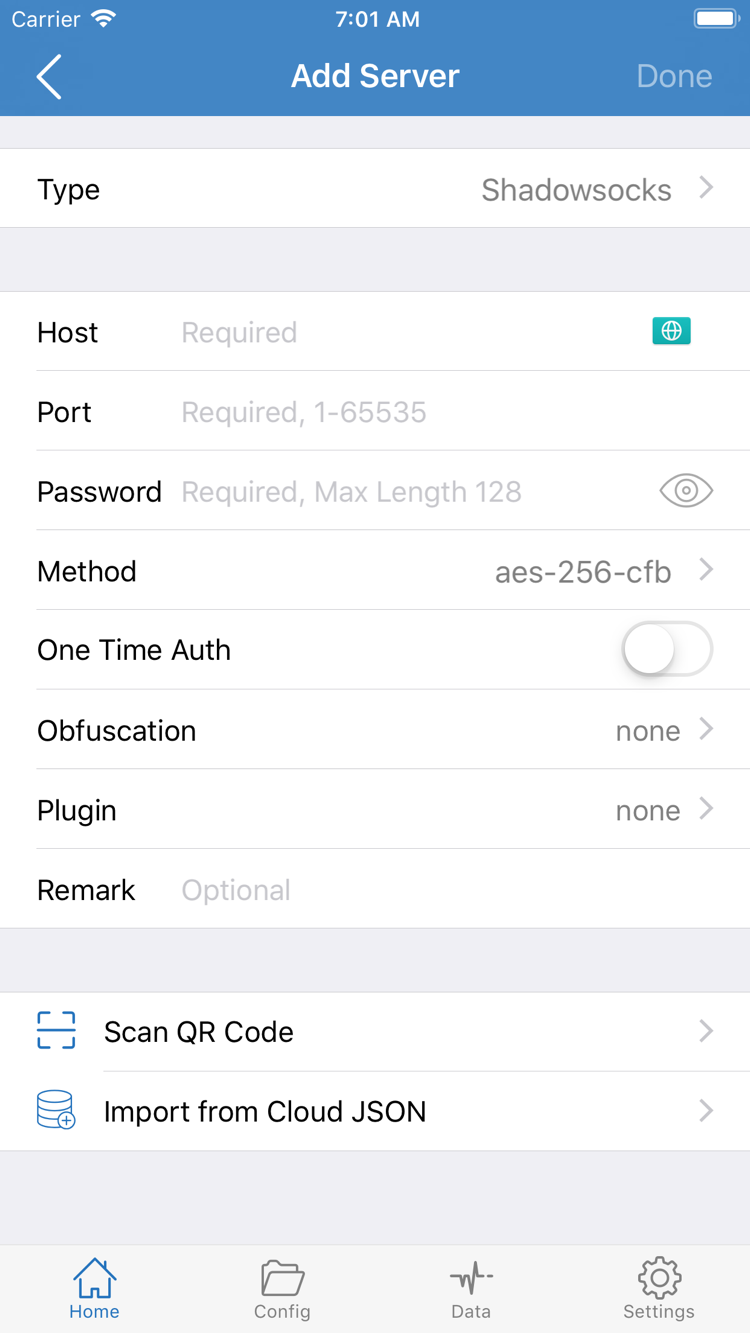
Add Server, Scan QR Code, and Import from Cloud JSON in the screenshots are import options, not ways to buy a connection service. Continue with setup only if you already have your own subscription or server details. Don’t copy the example fields; use your own valid information. Avoid sharing personal screens that show passwords or subscription URLs.
03 / IPHONE
Buy, install, and open Shadowrocket on iPhone
On your iPhone, open the verified App Store listing and expand the compatibility details to confirm your device meets the current requirements. Check the App Store page for system requirements; don’t rely on older screenshots in this manual to determine compatibility. For a first-time purchase, review the price in your local currency, confirm your Apple ID and payment details, then complete any verification requested by the system. If you’ve purchased the app before, download it from your Purchased list instead.
After purchase, confirm the app has finished installing
Purchase confirmation and app download happen in separate steps. If the product page shows download progress, wait for it to finish before tapping “Open.” If the download is stuck, check your network, available storage, and any App Store messages. Don’t try to pay again until you’ve checked the order status. If the system asks you to verify your account, do so through the system account or App Store flow. Don’t enter payment account details in Shadowrocket’s server fields.
Understand the first VPN configuration prompt
When you first open the app, you can browse Home and import your own subscription or server details. The first time you try to connect, the system may ask for permission to add a VPN configuration. This is system authorization for a network configuration, not another app purchase. Read the prompt, confirm the action is from Shadowrocket, and follow the system steps. If you cancel authorization, the connection won’t work as expected; return to the app and try again after reviewing the system prompt.
Installing the app doesn’t complete your connection setup. Global Routing on Home lets you choose routing modes such as Config, Proxy, or Direct, but a connection still requires server details you already have. First confirm your entry was imported, select the appropriate routing mode for your configuration, then enable the connection and test it. Once purchase and installation are complete, continue with the complete setup guide. For an explanation of rule terms, see the configuration reference.
04 / IPAD
Use your purchase on iPad
Shadowrocket is available on iPhone and iPad. After purchasing with the same Apple ID, you can get it on compatible devices of both types. Check the App Store listing for universal purchase availability and system requirements. On iPad, confirm the App Store account is the one used for the original purchase, then check your Purchased list. If the listing still shows a price, check the account and purchase history before paying again.
Treat app purchases and configuration transfers separately
The App Store records your app purchase; it doesn’t store your connection details. Even after installing the app on iPad, check whether your own server entries appear in Home and whether Config contains the configuration you need. Don’t assume that selections, subscription update status, or rules from your iPhone have automatically transferred to iPad. Reimport your own details and check each item to make troubleshooting easier.
The larger screen and landscape layout on iPad may arrange lists and details differently, but interface labels such as Home, Config, and Add Server can still help you find your way. When using the official iPhone screenshots, focus on field names and available actions rather than looking for the exact same screen coordinates. After importing, confirm the selected entry, check Global Routing, and read the system authorization prompt shown on iPad when you connect for the first time.
Other Apple devices on the same App Store listing
The compatibility section of the same App Store listing includes Mac, Apple TV, and Apple Vision. These devices also get the app through the App Store. Universal purchase availability, system requirements, and compatibility all depend on what the App Store listing says. To use Shadowrocket on another device, check its product page and purchase status there. The iPhone and iPad steps on this page don’t indicate how the interface is arranged or how configurations transfer on other devices.
05 / RESTORE
New device or reinstall: restore from Purchased
If you get a new iPhone, switch to iPad, or reinstall the app after deleting it, first find the original purchase. Restore the app through the App Store, not by creating another purchase in Shadowrocket. Sign in with the Apple ID used for the original purchase, go to App Store → Account → Purchased, find Shadowrocket, and tap the cloud icon to download it again. You usually won’t need to pay again. On some systems, Purchased may appear under an “Apps” list; follow the menu labels on your device.
- Confirm that Media & Purchases uses the Apple ID that paid for the app; checking only the account shown at the top of Settings isn’t enough.
- Open Purchased from your App Store account, find Shadowrocket, verify the developer and app ID, then download it again.
- After installation, open the app and check whether your configuration is still there. If entries are missing, import your own subscription or server details.
- Check Global Routing and the selected entry again. When you connect for the first time, handle the device’s VPN configuration prompt, then test the connection.
Already purchased, but the App Store shows a price again
First check which account made the original purchase, then review the current account’s region and purchase history. Changes to your storefront region, multiple purchasing accounts, or hidden purchases can make the app appear differently than expected. Check your account’s purchase history and hidden purchases. If the record and listing still don’t match, contact support through the App Store account page. Redownload eligibility depends on the current storefront status. Don’t repeatedly tap the price button to see whether you’ll be charged again.
Don’t assume Family Sharing makes the app available just because it’s installed on another device. Check the App Store listing and account details for Family Sharing support, family member eligibility, and universal purchase availability. After restoring the app, check subscription links, server passwords, and personal rules separately. If possible, keep a copy of your own configuration details on your old device before switching, so you don’t discover missing information later.
06 / ONE-TIME PURCHASE
Price, one-time purchase, and connection services
Shadowrocket is a paid app with a one-time purchase and no monthly client fee. The US storefront reference price is a one-time purchase of $2.99. Other storefronts display local currency; the final amount is the one shown on the App Store purchase confirmation screen. Don’t use one storefront’s reference price to estimate the final charge in another, or mistake a system payment verification prompt for a separate connection service fee.
One-time app purchase ≠ connection plan
Buying Shadowrocket gives you access to the client; it doesn’t provide a server, subscription URL, or connection allowance. This site does not provide or sell nodes or subscriptions, and does not recommend connection services. The steps that follow assume you already have your own subscription or server details. If you don’t have those details yet, you can explore the interface without entering guessed addresses, passwords, or protocol settings.
Assess app issues separately from connection service issues. The App Store handles purchase history, app downloads, and app updates. Whether your existing subscription updates or your server settings are valid depends on your own details. A successful purchase followed by a failed connection doesn’t mean the purchase failed. First check that the app is installed and opens normally, then confirm that your entry was imported correctly, and finally check the configuration and the status of your connection service.
App updates are delivered through the App Store
Update the app in the App Store, or use automatic updates in your device settings. Before updating, you may want to keep a copy of your current configuration. Afterward, check your usual entries and routing selection. App updates don’t extend an external connection service or correct server details you entered incorrectly. If you’re restoring a purchase, redownload the app first, then handle configuration and connections separately to avoid mixing up different issues.
PURCHASE QUESTIONS
Download and purchase FAQs
Can’t find Shadowrocket in the App Store? Check these settings first.
Check the country or region for the Apple ID used for Media & Purchases. The app isn’t available in the mainland China storefront; your device language and current location don’t determine which storefront your account uses. Go to Settings → Apple ID → Media & Purchases → View Account → Country/Region, then open the product link on this page to check the current storefront listing.
The App Store page opens, but the download won’t complete. What should you do?
Read the App Store message and check your account region, payment status, device compatibility, available storage, and network connection. Resolve payment issues in the App Store. If the app is marked incompatible, follow the requirements on its product page. Before trying to buy again, check whether an order already exists.
Do you have to pay again when you get a new iPhone?
On the App Store, sign in with the Apple ID used for the original purchase, go to Account → Purchased, find Shadowrocket, and download it again. You usually won’t need to pay again. If a price still appears, check the purchasing account and purchase history. Redownload eligibility depends on the current App Store status. After restoring the app, import your own subscription or server details.
Can you use the iPhone purchase on an iPad too?
After purchasing with the same Apple ID, you can get Shadowrocket on compatible iPhone and iPad devices. Check the App Store listing for universal purchase availability and system requirements. On iPad, you’ll still need to check and import your own configuration; purchasing the app does not sync your configuration.
Can you get it on Mac, Apple TV, or Apple Vision?
The compatibility section of the same App Store listing includes Mac, Apple TV, and Apple Vision. Check the listing on your target device. Refer to the App Store page for universal purchase availability, system requirements, and compatibility.
The app interface is in English. How can you follow this manual?
This manual uses English interface labels such as Home, Global Routing, Config, and Add Server so you can compare them with the official screenshots. Interface language alone does not verify an app’s identity. Also check the official icon, developer name Shadow Launch Technology Limited, and app ID 932747118.
Finished purchasing and installing? Continue with the guide to importing a subscription and making your first connection. For other account, rule, and connection questions, browse the FAQs by category.