App Store Purchase · Official Manual

Shadowrocket User Guide

A rule-based proxy client for iPhone / iPad. First verify the official App Store listing and understand the one-time purchase, then import your existing subscription and configure routing rules.

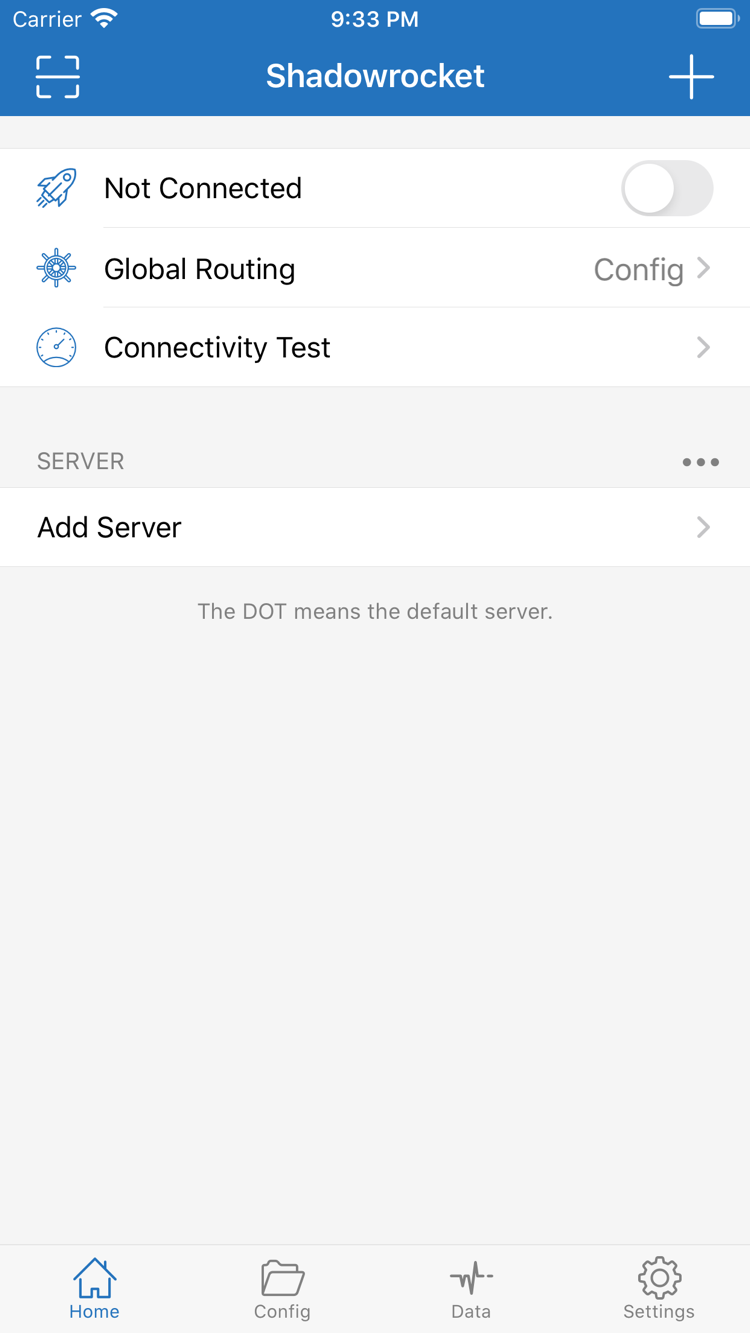
Official Shadowrocket Home screenshot showing the connection switch, Global Routing, and server list

Shadowrocket Features

Check rules, connection conditions, and configuration details one by one. The examples below illustrate syntax and interface options; they are not complete configurations for every network.

Explore All Configuration Options

Choose a policy based on the matching rule

In Config, review the current configuration’s Rule section and confirm that Global Routing is set to Config. Rules are evaluated from top to bottom, and the first match determines the policy. DOMAIN-SUFFIX matches a specified domain and its subdomains; FINAL handles requests that did not match any preceding rule. When editing rules, put specific conditions before broader ones and keep a catch-all rule at the end. In the examples, DIRECT means a direct connection, while PROXY uses the currently selected proxy. Rules do not create servers or replace valid connection settings.

[Rule]
DOMAIN-SUFFIX,apple.com,DIRECT
GEOIP,CN,DIRECT
FINAL,PROXY

When reading rules, first distinguish whether a connection is established from which policy a request follows. Server entries, subscription sources, configuration files, and Global Routing each serve a different purpose. Seeing an imported server does not mean requests are being routed as expected. For keywords such as DOMAIN, IP-CIDR, and REJECT, see the Glossary, then review the complete syntax in the configuration reference.

Getting Shadowrocket on iPhone and iPad

Shadowrocket is available exclusively through the App Store. Check the App Store listing for system requirements, compatibility, and Universal Purchase eligibility.

iPhone

On the App Store product page, verify the developer and app ID before making a purchase. When establishing a connection for the first time, iOS may ask to add a VPN configuration. Confirm that the request was initiated by Shadowrocket, review the prompt, and grant permission if appropriate. This permission configures the system network settings; it does not fill in server details. After opening the app, you still need to import your own subscription or add a server manually.

See how to get Shadowrocket on iPhone →

iPad

In the App Store, sign in with the Apple ID used for the original purchase, then check your purchases and the status of the store button. Eligibility for redownloading under the same account and for Universal Purchase depends on the App Store listing. App purchase records and connection settings are separate: on iPad, import your existing subscription again, check the current Config, and test the connection separately. A different landscape layout does not change the configuration logic.

See how to get Shadowrocket on iPad →

Shadowrocket is also available for Mac and Apple TV through the same App Store. Check the listing for compatibility.

If the store does not show the expected purchase status, first check the account used for App Store purchases rather than only the device’s iCloud account. If you cannot find the app, check the account’s storefront and the compatibility information first. Do not mistake an App Store visibility issue for a subscription or rules problem.

From an existing subscription to a verified connection

Complete initial setup in this order: import, select, verify. Before you begin, have your own subscription URL or server settings ready, and make sure your local network can access online services.

View the complete guide →

01 / Add Server · Subscribe

Add an existing server or subscription

In Home, open Add Server. If you have a complete subscription URL, select Subscribe and save it. If you only have details for a single server, choose the matching Type and enter Host, Port, and the authentication fields. Return to Home, confirm that an actual entry appears in the SERVER group, and select the server you want to use. A server name is only a label for identification; it does not guarantee connectivity and should not replace checking the protocol and settings.

When copying a URL from elsewhere, check for extra spaces, line breaks, or explanatory text. Troubleshoot subscription update failures separately from connection failures: first check the subscription URL and whether it is reachable; for connection failures, inspect the imported server settings. Record the current state before making changes so you do not overwrite a working configuration through repeated edits.

02 / Global Routing

Choose Config, Proxy, or Direct

Global Routing determines the overall routing mode. Config applies the rules in the selected configuration file; Proxy routes applicable traffic through the proxy; Direct uses a direct connection. For rule-based routing, first confirm that the configuration file is selected, then choose Config. Do not confuse selecting a server with routing every request through that server. The result also depends on the routing mode and rules.

Temporarily switching routing modes can help narrow down a problem, but it is not a universal fix. If a request works in Proxy but fails in Config, focus on the matching rule and final policy rather than repeatedly importing the subscription. When testing is complete, restore the intended mode so subsequent use matches the purpose of your configuration.

03 / Home · Connectivity Test

Turn on the connection and test a real request

Return to Home and turn on the connection. Follow the system prompt to authorize the required VPN configuration. Run Connectivity Test, then access a specific service to check whether a real request succeeds. A successful test is only one clue; also confirm that the target domain uses the expected policy. If something goes wrong, note the error and check each layer in order: local network, server, DNS, and rules. Change only one setting at a time.

After switching between Wi-Fi and Cellular, repeat the same tests to determine whether the issue occurs only on a particular network. If you need to inspect Diagnostics, retain the error details relevant to the issue, but remove subscription URLs, authentication fields, and personal data before sharing. Data can show traffic changes; it is not a record of a remote service’s balance or billing.

APP STORE / VERIFYING THE APP AND PURCHASE HISTORY

How to verify the app and understand the one-time purchase

Shadowrocket is a closed-source commercial app. This is the official Shadowrocket website and manual. Use the App Store product page as the reference for getting, purchasing, and updating the app.

  • App ID: 932747118
  • One-time purchase
  • Developer: Shadow Launch Technology Limited

Verify the icon, developer, and app ID together

On the product page, first check the app name, Shadowrocket. Then confirm that it uses the official icon shown in this site’s header and verify the developer, Shadow Launch Technology Limited. The product page URL should include id932747118. Do not rely only on a search result’s name or a similar-looking image. The name helps identify the app; the developer and app ID provide further confirmation of the specific product.

After verification, check the purchase button, compatibility, and app details. Always refer to the App Store listing for system requirements; this manual does not promise support for a particular system version indefinitely. If the store says your device is incompatible, address the conditions listed there. Subscription and rule settings cannot change device compatibility.

Buying the app ≠ buying a connection plan

Purchasing Shadowrocket gives you the right to use the client app; it does not include a server, subscription, or connection service. This site does not provide, sell, or recommend servers or subscriptions. Instructions for adding a server or using Subscribe assume that you already have your own server details or subscription URL. If you do not, ask your service provider rather than treating your app purchase record as connection credentials.

The US storefront price is about $2.99 as a one-time purchase. Other storefronts show local currency; the final amount is shown at checkout. App purchase status and the validity of a connection service are managed separately. If a subscription expires, its URL becomes invalid, or server settings change, reinstalling the app will not restore the service. Check the service’s actual status separately.

On a new device, restore the purchase first, then restore your settings

After switching devices or deleting and reinstalling the app, sign in to the App Store with the Apple ID used for the original purchase. Find Shadowrocket in your purchases and check its product page status. If the store’s conditions are met, you can redownload it from your purchase history. Eligibility for redownload on iPhone and iPad under the same account, including Universal Purchase, depends on the App Store listing. Do not make a duplicate purchase just because another device shows a purchase button.

Restore the app and restore your settings as two separate steps. After getting the app, import your own subscription, check Config and Global Routing, and test the connection again. If you use an iCloud sync feature, first check what is actually synced. Account sign-in, app purchases, and configuration sync each have different scopes. Confirm them separately; purchase history does not save all network settings.

Check storefront availability and app updates separately

What appears in the store and whether the app is available to get may vary by account storefront. If you cannot find the app, the purchase status is unexpected, or checkout fails, first check the App Store purchase account, storefront, and messages on the product page. Before changing your account’s region, read the store’s guidance on existing purchases and account status. Temporarily switching regions is not a general troubleshooting step.

App updates are delivered through the App Store. Whether automatic updates run also depends on device settings and store status. You may want to save a copy of your current configuration before updating, then check your frequently used servers and rules afterward. App updates, subscription updates, and configuration file updates are separate operations: the first updates the client, the second refreshes entries from a source, and the third may change request matching and policies. Verify each separately.
Read how to verify the app and restore purchases →

Guides to connections and purchase recovery

After verifying a basic connection, choose articles for your specific situation. On Demand, background battery use, and restoring purchases on a new device address different issues and are not substitutes for one another.

View all articles →